How to Transcribe a Video (With Timestamps)
How to transcribe a video in four steps — paste a YouTube, TikTok or Instagram link or upload a file, then edit and export TXT, SRT or VTT. Free to try.
Updated November 15, 2026 · From the video transcript generator team
What you need before you start
You need the video file, or a public link to it — nothing else. There is no software to install and nothing to download from YouTube or TikTok.
- A link works for public YouTube videos and Shorts, public TikTok videos, and public Instagram Reels and video posts.
- A file works for any audio or video on your device: MP4, MOV, WebM, MP3, M4A, WAV, OGG or FLAC. Your browser takes the sound out of the file first, so a large video becomes a small upload.
- An account. New accounts with a personal email address get 10 free minutes once, for videos up to 10 minutes long. Longer videos need a paid plan.
If the video already has a subtitle file (SRT or VTT), you can import it instead. Importing is free and uses no minutes.
Step 1: Paste a link or upload your file
Open the video transcript generator and choose one of the three tabs at the top of the box: Paste link, Upload file or Import subtitles.
For a link, copy the share link from the app or the address bar and paste it into the box. For a file, click Choose file and pick it from your device.
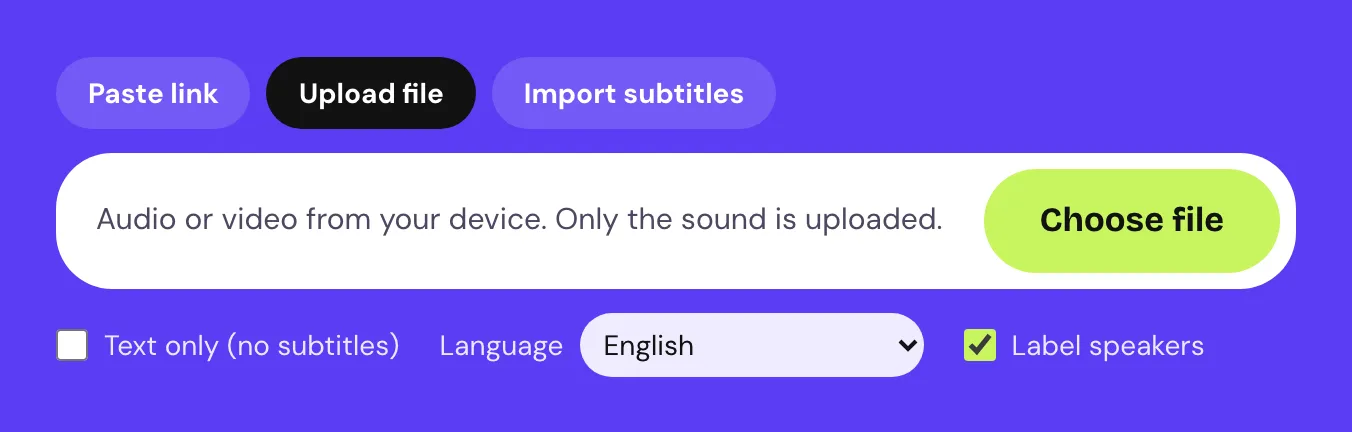
While the audio is taken out of a file, the box says so; this happens in your browser, so nothing leaves your device until the audio is ready.
Each platform also has its own page with tips for that source: YouTube, TikTok, Instagram and MP4 files. An audio-only recording works best from the audio transcription tool.
Step 2: Choose the language and start
Before you start, three options sit under the box:
- Language. Leave it on Detect automatically, or pick the spoken language from the list (19 languages, from English and Spanish to Japanese and Chinese). Picking it yourself is safer for short clips and for videos that mix languages. The tool never translates: the transcript is in the language that is spoken.
- Label speakers. Tick this if more than one person talks and you want each line marked Speaker 1, Speaker 2 and so on. It uses a slower speech recognition route.
- Text only (no subtitles). Leave this unticked if you want subtitle files. Ticking it allows a plain-text result without timestamps for some short social videos.
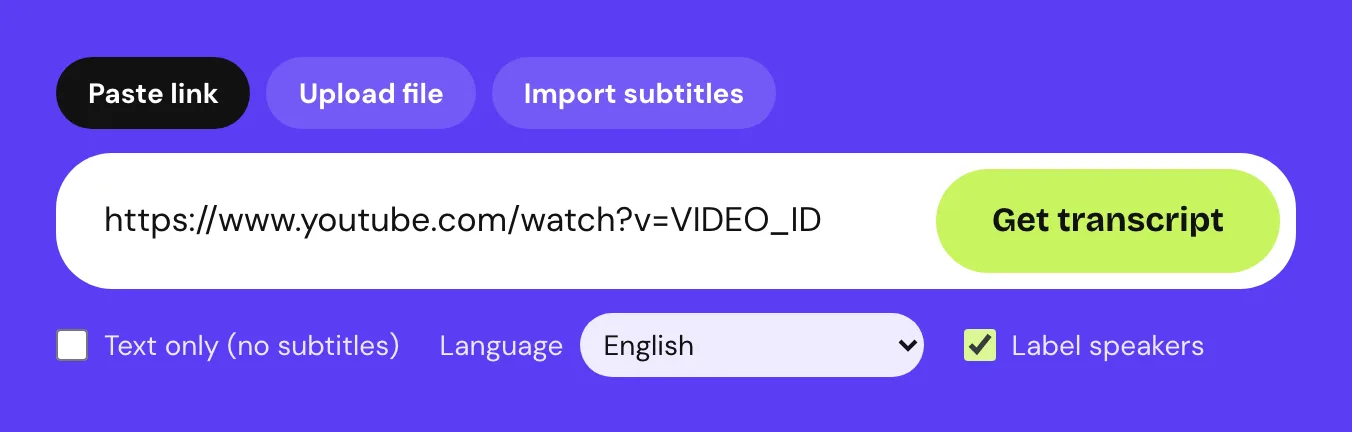
Then click Get transcript (or confirm the upload). A quote appears under Before it runs. It shows the method, how many minutes the video uses and your balance:
- Captions first means the video already has captions with timing, so we reuse them.
- Speech recognition means the sound is turned into text by a speech model.
- Speech recognition + speakers is the same, with speaker labels.
Nothing is charged until you click Start transcript, and if anything fails, every minute goes back to your balance.
Step 3: Fix names and mark who is speaking
When the transcript is ready, it opens with a timestamp on every line. For an uploaded file, clicking a line plays the audio from that moment; for a YouTube video, the same works once you click Load YouTube player. That makes checking a word quick.
Click Edit to correct the text. Most fixes are names, brand names and technical words, which no speech model can know in advance. If you ticked Label speakers, open Speaker names and replace Speaker 1 and Speaker 2 with real names once; every line updates.
Your edits are saved as a new version. The original transcript stays saved, so you can switch back to it at any time.
Step 4: Export as TXT, MD, SRT or VTT
There are three ways to take the transcript with you:
- Copy script puts the whole text on your clipboard, ready to paste into a document or a post.
- Download text gives you plain text (TXT) or Markdown, which keeps a timestamp on every line.
- Download captions gives you SRT or VTT subtitle files.
Here is what the start of an SRT file looks like:
1
00:00:00,000 --> 00:00:03,200
Welcome back. Today we are looking at three ways

2
00:00:03,200 --> 00:00:06,900
to turn a video into text you can actually use.
SRT and VTT carry the same lines and timing; VTT is the format web players prefer, SRT the one most editors import. If you need the other one later, the free SRT to VTT converter changes it in your browser.
How long does it take to transcribe a video?
For short videos, less time than it takes to watch them. These are timings we measured on our own service on October 16, 2026:
| What we transcribed | Method | Time until the transcript was ready |
|---|---|---|
| A 47-second TikTok link | Speech recognition | About 20 seconds |
| A 14-second uploaded clip | Speech recognition | About 20 seconds |
| A TikTok link with speaker labels | Speech recognition + speakers | About 2.5 minutes |
A video with captions is usually the fastest, because no speech recognition is needed. Speaker labels and videos without captions take longer. Longer videos take longer too; you can leave the page while a job runs and come back to it in your workspace.
Why timestamps matter
Timestamps turn a wall of text into something you can navigate. They let you jump to the moment a quote was said, check a word against the audio, and cut clips at the right second.
They are also what makes subtitles possible: an SRT or VTT file is just text plus timing. That is why every timestamp here comes from the captions or from speech recognition. If a source only gives plain text, as some short Instagram videos do, you get plain text and no subtitle files, never invented times.
Common problems: no audio, background music, heavy accents
Most failed or messy transcripts come down to the sound, not the tool:
- No audio track. Some Instagram Reels that use licensed music are served without sound. There is nothing to transcribe, so the job fails and your minutes are returned.
- Music only. A video with music and no speech can still produce a few invented words. When a transcript has very few words per minute, the result page warns you.
- Background music under speech. Speech usually comes through, but quiet words can be missed. Check those lines against the audio.
- Accents and fast speech. Choose the language yourself instead of relying on detection, and expect to fix a few words.
- Several people talking at once. Speaker labels help separate turns, but overlapping speech is hard for any model.
What if the video has no captions at all?
Then the sound is transcribed with speech recognition instead. You do not need to do anything different: the quote simply shows Speech recognition instead of Captions first, and it takes a little longer.
This is also the answer for YouTube videos where the Show transcript button is missing. Our guide on how to transcribe a YouTube video covers that case step by step.
Automatic vs manual transcription
Manual transcription means listening, pausing and typing. It can be very accurate, but it takes many times the length of the recording. Automatic transcription gives you a full draft in minutes, and your time goes into checking instead of typing.
| Automatic, then edit | Typing it yourself | |
|---|---|---|
| Time | Minutes, plus a quick review | Several times the length of the video |
| Timestamps | On every line | Only if you add them by hand |
| Subtitle files | Download SRT or VTT | Have to be built separately |
| Best for | Most videos, interviews, social clips | Very poor audio, legal or medical records |
For most videos, the fastest route is automatic transcription followed by a careful read. Keep manual transcription for recordings where every word must be certified.
Frequently asked questions
How do I transcribe a video for free?
Create an account with a personal email address and you get 10 free minutes once, for videos up to 10 minutes long. Paste the link or upload the file, confirm the quote, and download the transcript. Importing a subtitle file you already have is always free.
Can I transcribe a video without downloading it?
Yes. Paste the public link of a YouTube, TikTok or Instagram video and the transcript is made from the link. You only upload a file when the video is on your own device.
Does this work on TikTok and Instagram?
Yes, for public TikTok videos and public Instagram Reels and video posts. Private accounts, Stories and deleted videos cannot be opened, and you are not charged when a video cannot be read.
How accurate is automatic transcription?
It depends on the audio. Clear speech with little background noise comes out close to word for word, while music, crosstalk and heavy accents cause more mistakes. We do not publish an accuracy figure; every line can be corrected in the editor, and your original stays saved.
What formats can I export?
Plain text (TXT), Markdown, and the SRT and VTT subtitle formats. Subtitle files are only offered when the transcript has real timing.